

Create Weekly Class Timetable
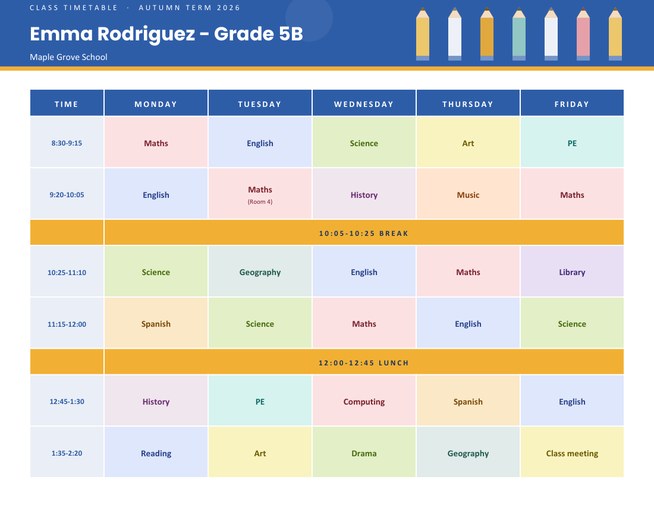
A colourful weekly class timetable with a row for each period and a column for each day. Type the times and subjects, add break or lunch rows, and every subject gets its own colour automatically.
Choose a five, six or seven-day week, add the student or class name, school and term, and download a Letter-size landscape PDF.
Fill in the information below
New here? Use the button above to fill in an example, then change it to your own details.
Rate this template
Used it? Tap a star. Honest ratings help others choose.
You May Also Like
Templates from other categories that people often use together with this one.
Other Similar Templates
More designs from the same collection, Free Printable Calendars and Planners. If this one is not quite what you need, one of these may be.
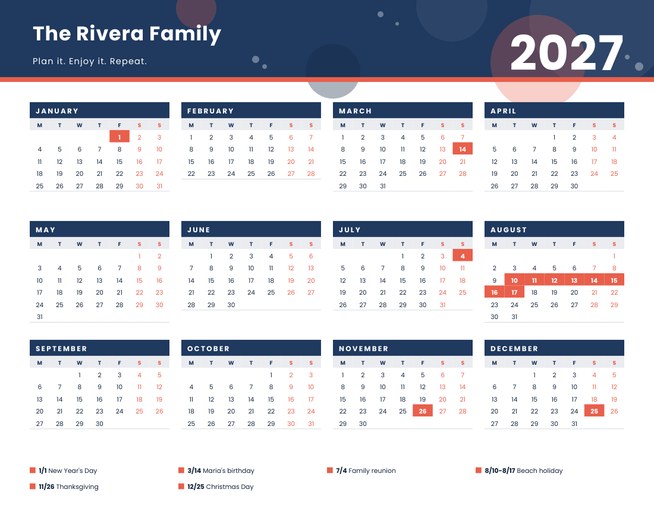
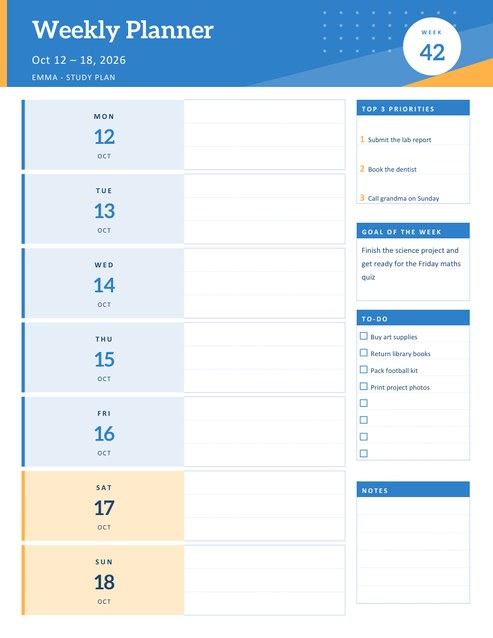
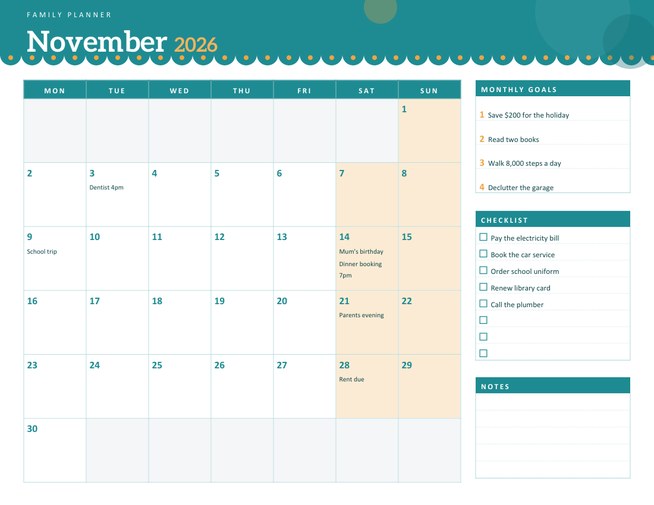
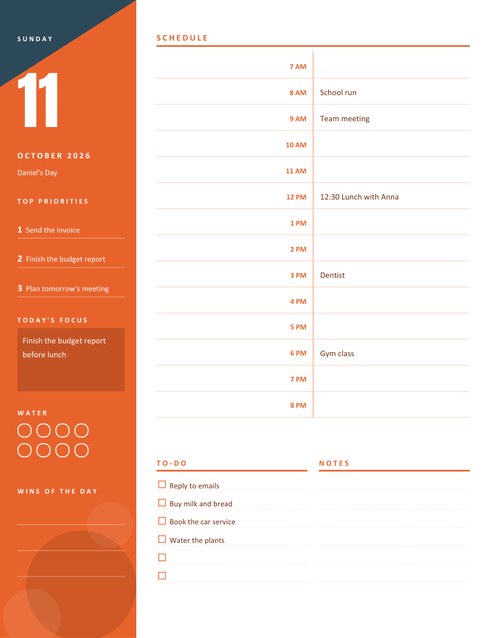
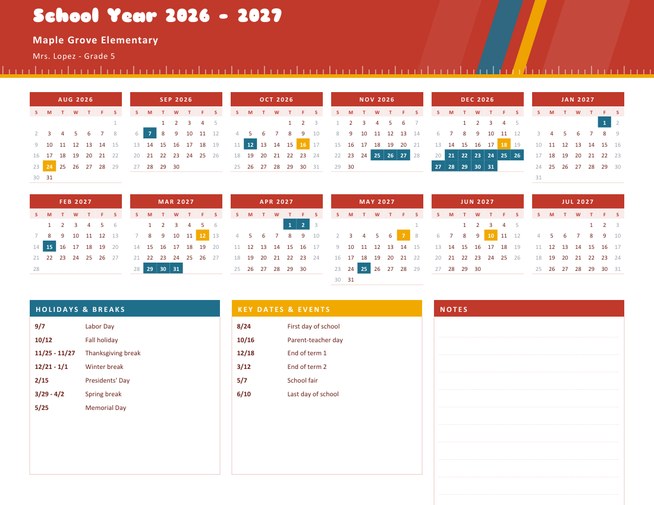
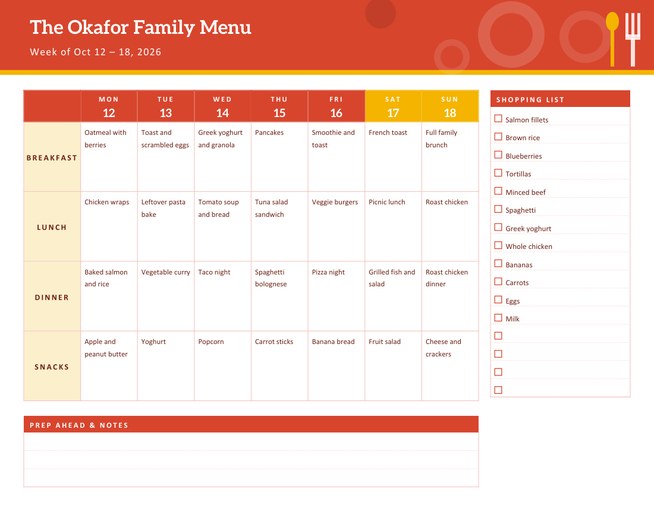
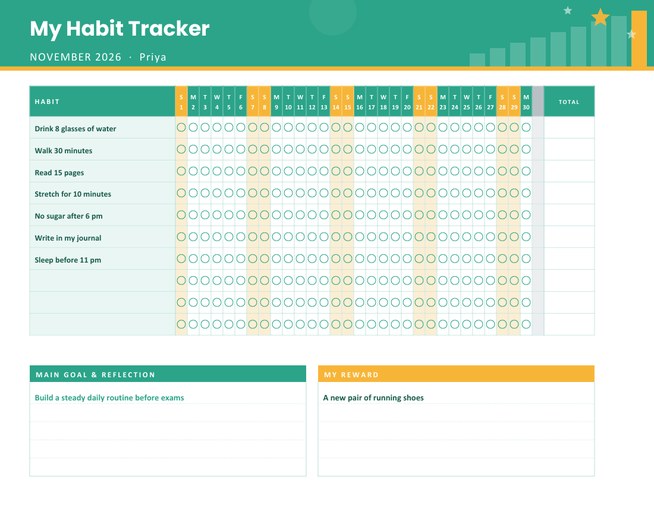
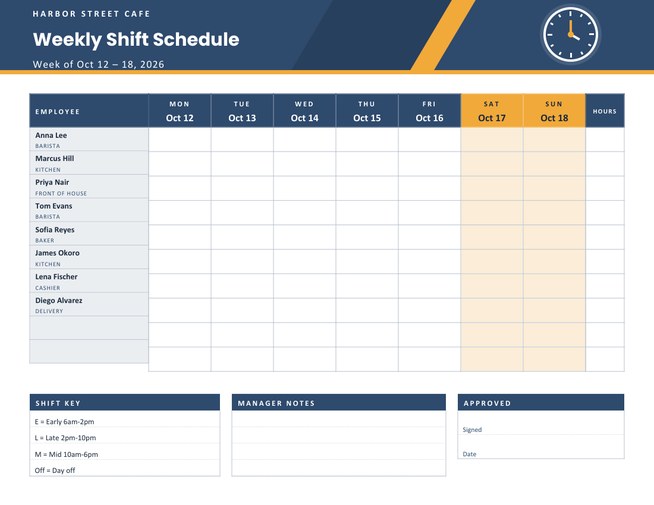
A timetable you can read at a glance
A school week changes from day to day, and most students need a clear picture of it: which lesson comes after break, when the sport kit is needed, where the free periods are. A plain table of words is hard to scan. This template colours every subject differently, so that the pattern of the week jumps out and a pupil can find the next lesson without reading each box.
It works for primary pupils, secondary students, university and college timetables, homeschool schedules and tutoring plans, because you decide the times and subjects yourself.
Typing the timetable
The timetable box takes one row per line, with the boxes separated by the vertical bar (the | character). Start with the time, then the subject for each day in order:
8:30-9:15 | Maths | English | Science | Art | PE
To add a break or lunch that runs across every day, start the line with a tilde: ~ 10:05-10:25 Break. You can add up to eleven rows in total. If a lesson needs a room or teacher, put it in brackets after the subject, for example Maths (Room 4); the bracketed text is printed on a second, smaller line. Leave a box empty for a free period and it prints as a pale grey cell.
The form, step by step
- Enter the student or class name, then the school and the term or year. All three are optional.
- Choose how many days the timetable covers: five (Monday to Friday), six (to Saturday) or seven. With six or seven days the day names are shortened to three letters so everything still fits.
- Pick a colour theme for the header and time column.
- Type the rows and use “Load sample data” if you want to see how the format works first.
How the colours are chosen
Each different subject name takes the next colour from a set of ten soft shades, in the order the subjects first appear on the page. The same subject always has the same colour everywhere on that timetable, and two different subjects never share a colour unless you use more than ten. Differences in capital letters do not matter, so “maths” and “Maths” count as one subject. Text colours are chosen to stay readable on every shade.
Who it helps
- Students who want a copy for the bedroom wall and another for the school bag.
- Parents who need to know which days are PE days and which days the library books are due.
- Teachers who give a printed timetable to every pupil on the first day of term.
- University students with lectures in different rooms, using the brackets for the building and room.
- Home educators building their own weekly rhythm with time for reading, maths, nature walks and rest.
Tips for a timetable that is used
- Print two copies: one for the bedroom and one for the bag.
- Write the term dates in the subtitle so it is clear when the timetable ends.
- Use a bracketed note such as “(kit)” or “(bring laptop)” on lessons that need extra things.
- Laminate the page, then write homework on top in dry-erase pen.
- Use the same names for the same subjects on every row, because the colours follow the names exactly.
Printing
The page is US Letter landscape, 11 by 8.5 inches. Row heights share the space, so a shorter timetable gets taller rows and a longer one stays compact. For A4 paper, choose “fit to page” in the print dialog.
Questions people ask
How do I add a break or lunch row?
Start the line with a tilde, for example “~ 12:00-12:45 Lunch”. It prints as a coloured band across all the days, a little shorter than a lesson row.
Can I include room numbers or teachers?
Yes. Put them in brackets after the subject, such as “Science (Lab 2)”. The bracketed text prints in smaller type under the subject.
Can I have a six-day or seven-day week?
Yes. Choose 6 or 7 in the Days Per Week list. The day names are shortened so they fit.
What happens to empty boxes?
They print as light grey cells, which makes free periods easy to see.
Why does every subject have a different colour?
It makes the week easier to scan. Colours are assigned in the order subjects first appear and stay the same throughout that timetable.
Can I use it for a university course?
Yes. Use the time boxes for lecture slots, the subjects for module codes and the brackets for rooms.