

Create Simple Invoice
A clean, no-fuss invoice for any seller. Enter who you are, who you are billing and what was supplied; the subtotal, discount, tax and total due are worked out automatically. Choose navy, teal or graphite, print on Letter or A4, and download the PDF.
Tap Load sample data to see a finished invoice first.
Fill in the information below
Rate this template
Used it? Tap a star. Honest ratings help others choose.
Other Similar Templates
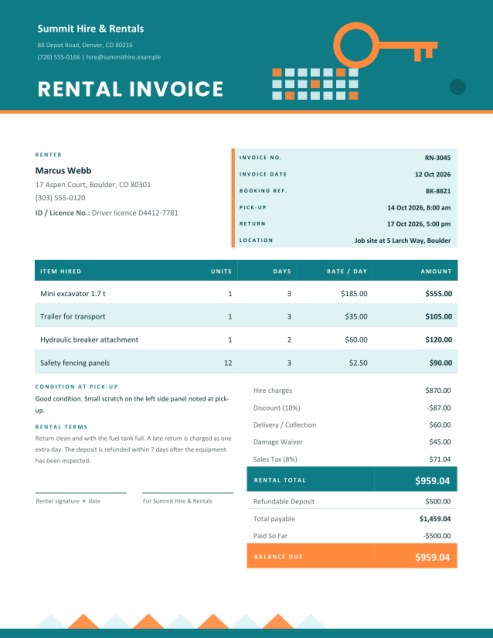
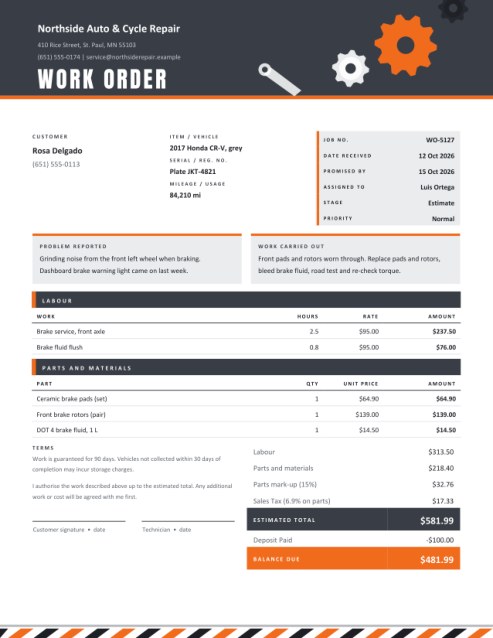
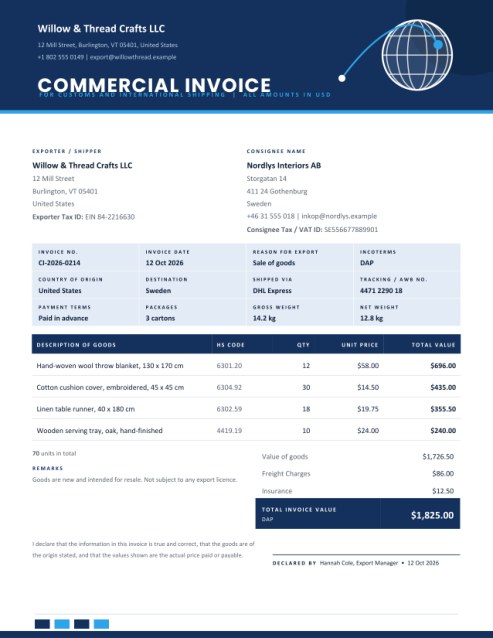
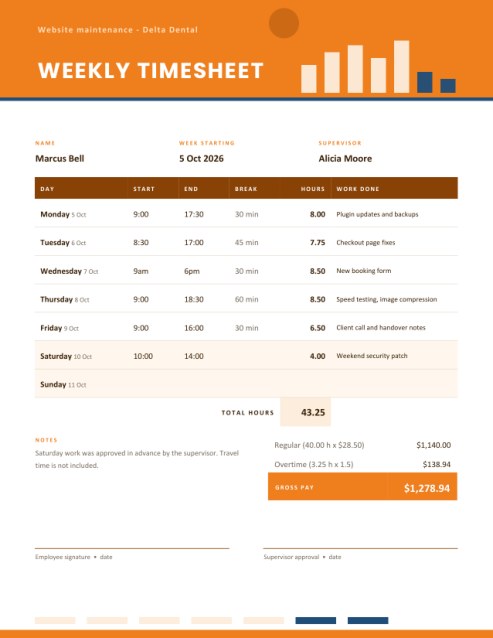
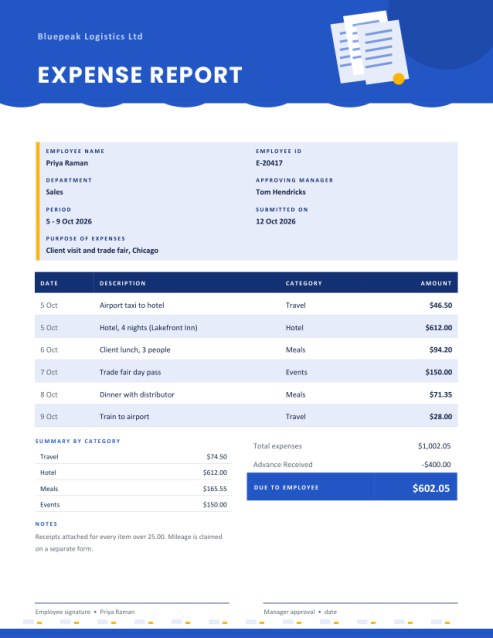
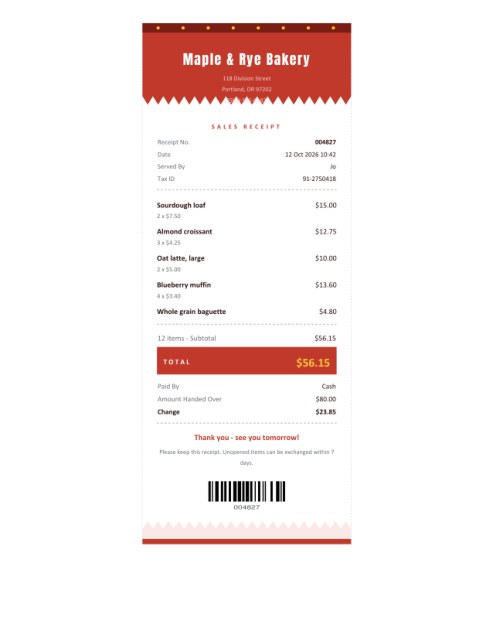
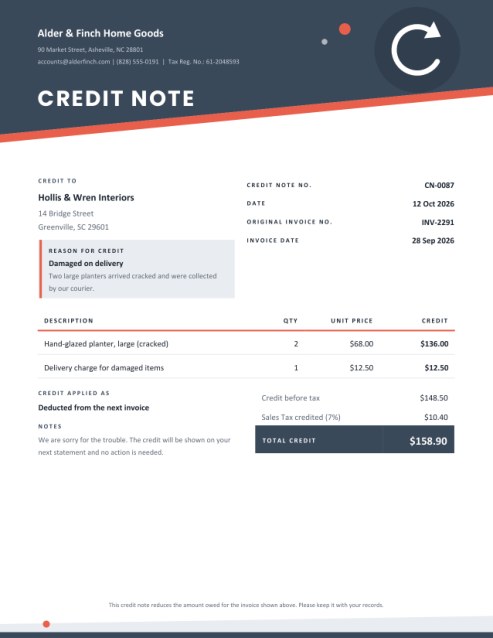
Some other templates similar to this one are also available here. If you would like to create your INVOICE using one of these templates, visit the following.
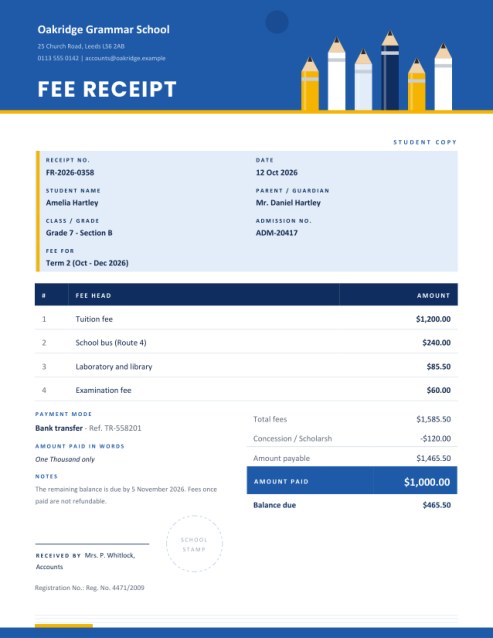
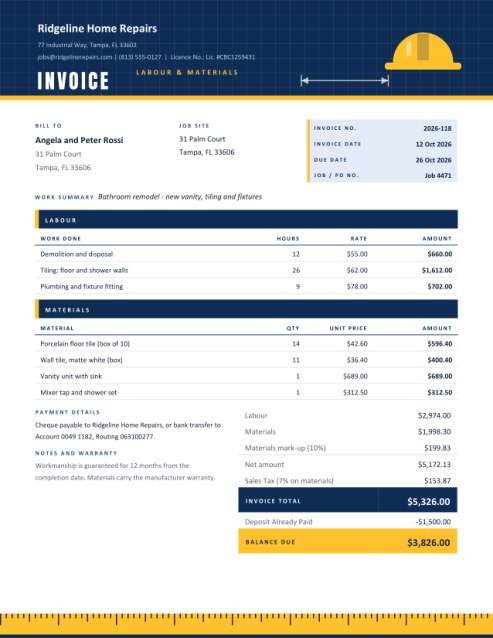
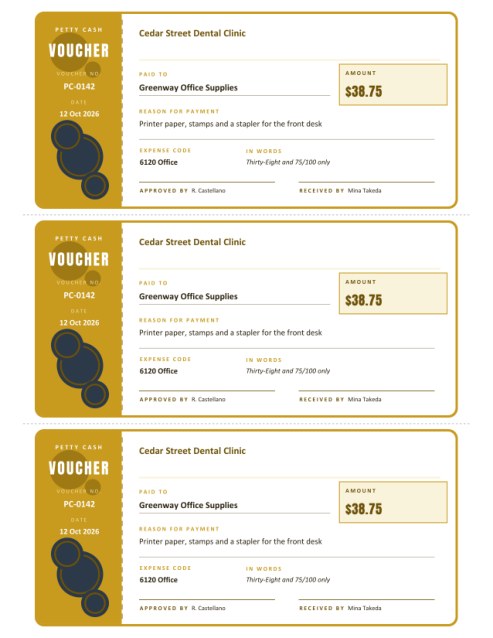
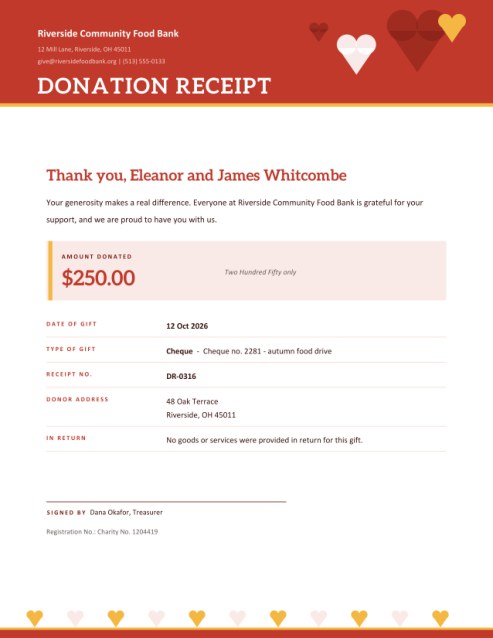
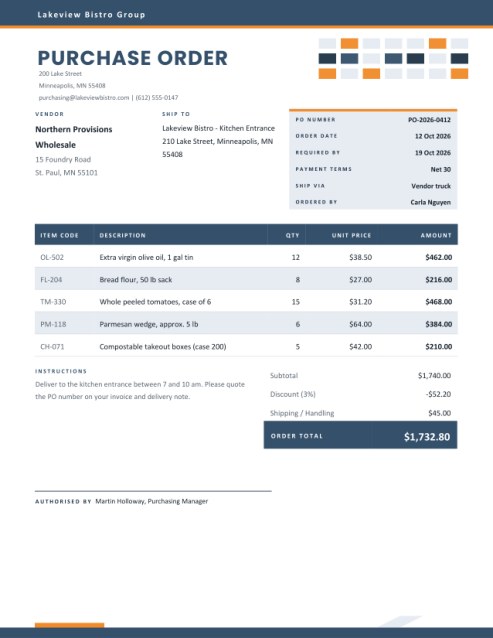
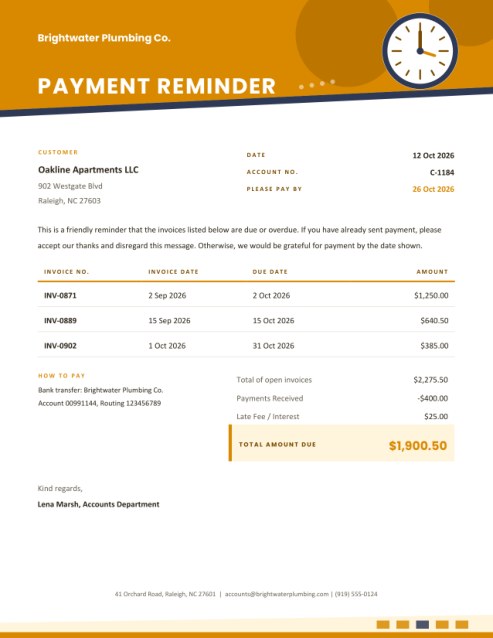
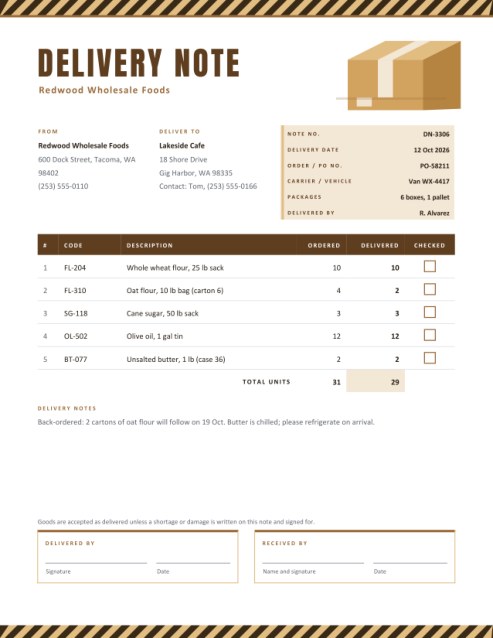
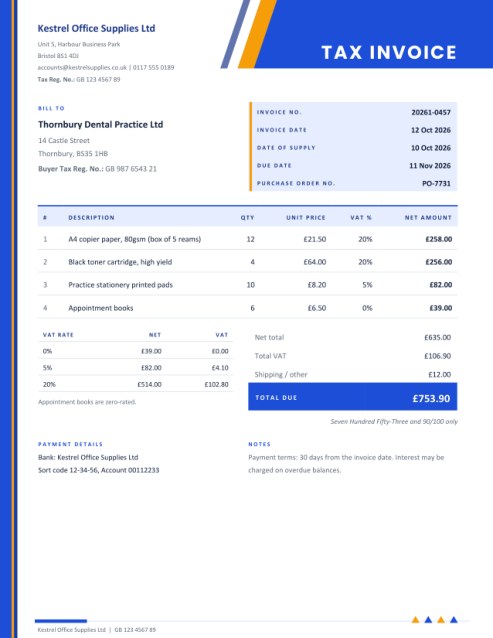
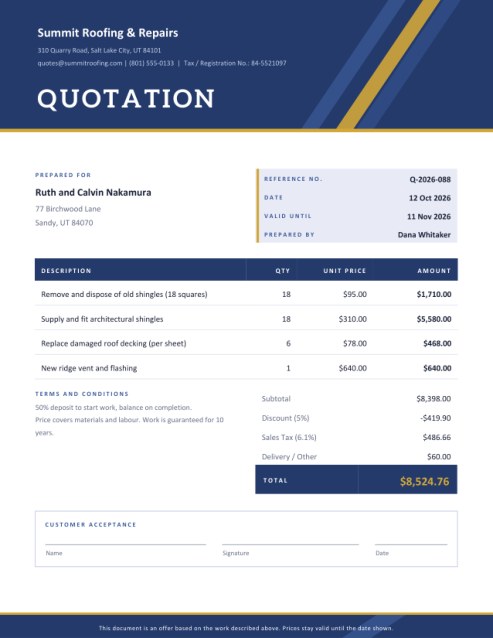
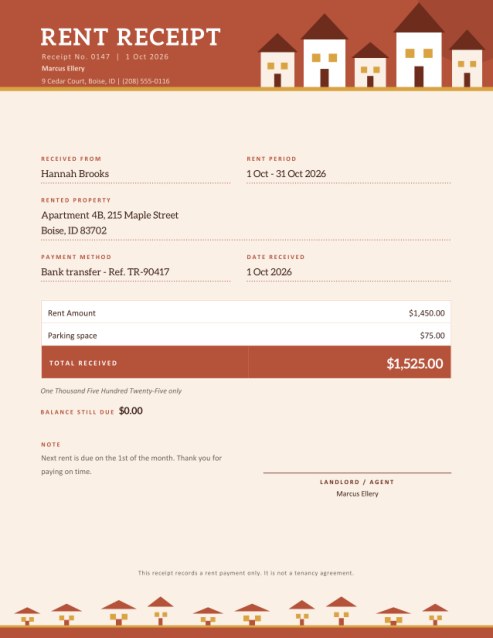
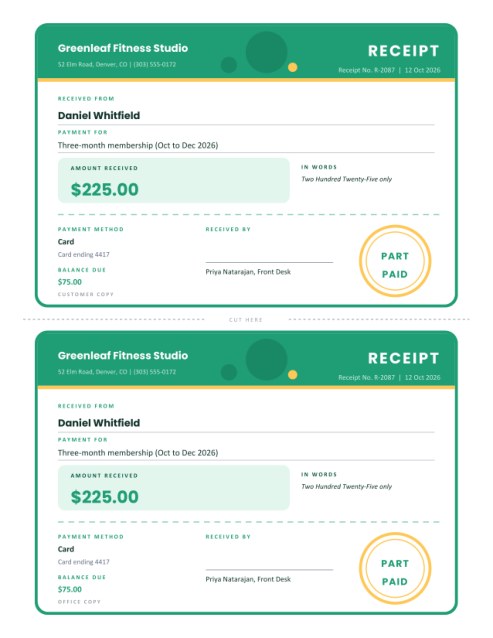
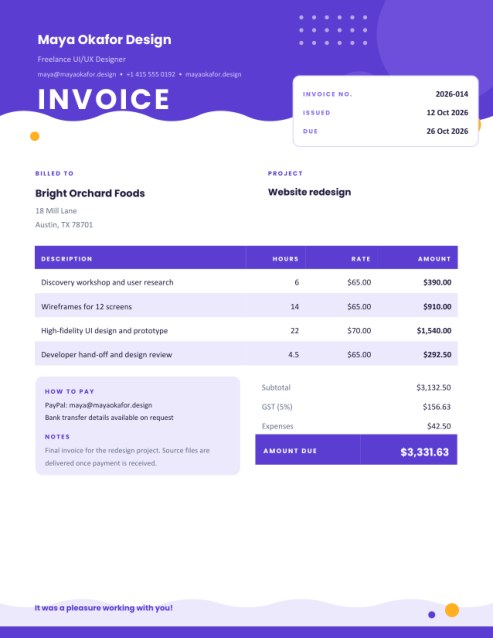
An invoice that stays out of the way
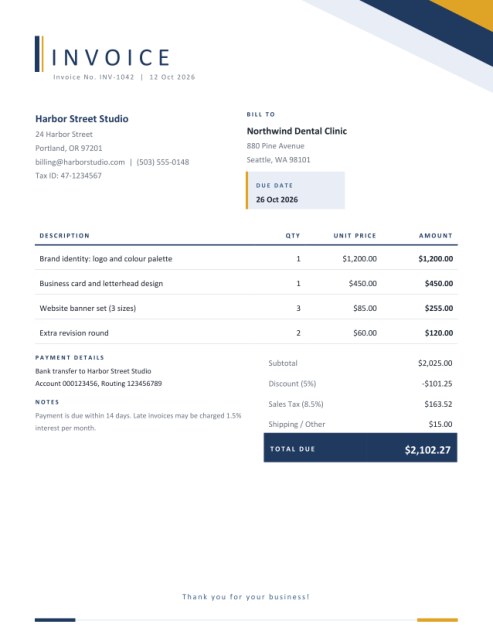
Some invoices shout. This one speaks quietly and clearly. A slim vertical bar, a letter-spaced title and a corner of overlapping triangles give the page a confident, modern look, while the rest of the sheet is kept white and open so that the numbers do the talking. Because most of the page is blank, it is also gentle on your printer: the graphite theme in particular uses very little ink.
It suits anyone who sells something and needs to say so on paper: a tutor, a photographer, a cleaning service, a market-stall holder who supplies a cafe, a repair person, a small online shop sending a business order. If your needs are more specialised, such as hourly work, VAT with several rates, or a receipt only, look at the other templates in this category.
The form, section by section
Document style
Pick a colour theme (navy and gold, teal and coral, or graphite and brass), the paper size (US Letter or A4) and the currency symbol. Leave the symbol empty and a dollar sign is used.
Your business
Type the name you trade under, an address, an email and a phone number. A tax or business registration number is optional; if you add one, its caption can be renamed with the pencil icon, for example to “VAT No.” or “ABN”. Upload a logo if you have one and it appears above your name.
Invoice details
The invoice number, date and due date appear in the header and in a highlighted box. If you leave the date empty, today’s date is used. The due date can be a calendar date or a phrase such as “On receipt”.
Items
Five rows are shown at first, and the + Add another line button reveals more, up to fourteen. A Remove last line button takes one away again. For each row give a short description, a quantity and a unit price. The amount beside the row updates as you type. If you only enter a price, the row counts as a single unit, which is handy for fixed-fee jobs. Empty rows are left out of the PDF altogether.
Discount, tax and extras
Enter a discount percentage and a tax rate, and name the tax if you wish (“Sales Tax”, “VAT”, “GST”). The discount is taken off the subtotal first, and tax is then calculated on the discounted amount. A single “Shipping / Other” amount is added at the end without tax.
Payment details, notes and closing line
Use payment details for bank information or a payment link, notes for late-payment terms or a reference, and the closing line for a friendly sign-off.
How the total is worked out
Suppose you supply four items worth 2,025.00 in total, give a 5 percent discount, charge 8.5 percent tax and add 15.00 for delivery. The discount is 101.25, which leaves 1,923.75. Tax at 8.5 percent on that figure is 163.52. Adding 15.00 for delivery gives a total due of 2,102.27. The sample data in the form uses exactly these numbers, so you can check the arithmetic against your own calculator.
Choosing a theme
- Navy and gold looks established and dependable, a good default for professional services.
- Teal and coral is fresher and friendlier, suited to creative work, health and wellbeing, and food.
- Graphite and brass is the economical choice: mostly grey line work, which prints well on any office machine.
Mistakes this template helps you avoid
- Forgetting to put a due date, which gives customers no deadline.
- Showing a price but no quantity, which leads to arguments about what was ordered.
- Adding tax to a figure that already included it. Enter prices before tax and let the template add it.
- Re-using last month’s number. Increase the invoice number every time.
- Leaving out bank details and then waiting for a customer to ask for them.
Sending and storing
After you press Preview & Download you can save the PDF, print it, or attach it to an email. Many people keep a folder per year, with files named by number and customer. If you spot a mistake, go back, correct the form and create the invoice again; your answers are remembered during your visit.
Questions people ask
Can I invoice in a currency other than dollars?
Yes. Type any symbol into the currency box, such as £, € or Rs.
What if I have more than fourteen items?
Group similar work into one line, or create a second invoice and refer to it in the notes.
Is the invoice number generated for me?
No. You choose it, so it can follow whatever numbering system you already use.
Will it print on A4?
Yes, choose A4 in the paper size list.
Do I have to add a logo?
No. Without a logo the page looks just as tidy.