

Create Credit Note
Correct an invoice without confusion. Reference the original invoice, say why you are crediting the customer, list what is being credited and state how the credit will be used: refunded, kept on account or deducted from a later invoice.
Totals and tax are calculated for you, and the page prints in your choice of three colour themes.
Fill in the information below
Rate this template
Used it? Tap a star. Honest ratings help others choose.
Other Similar Templates
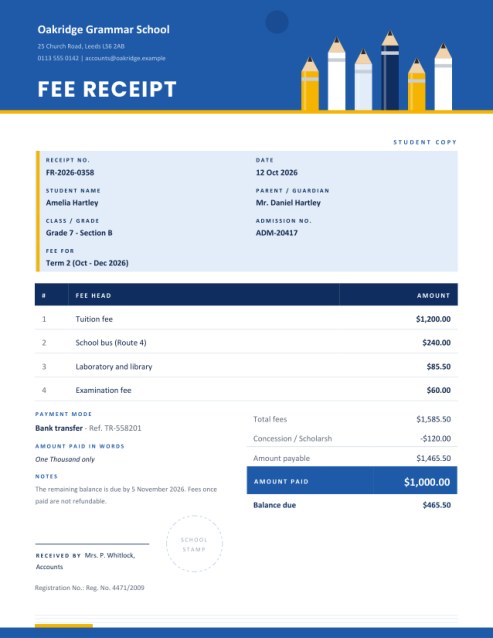
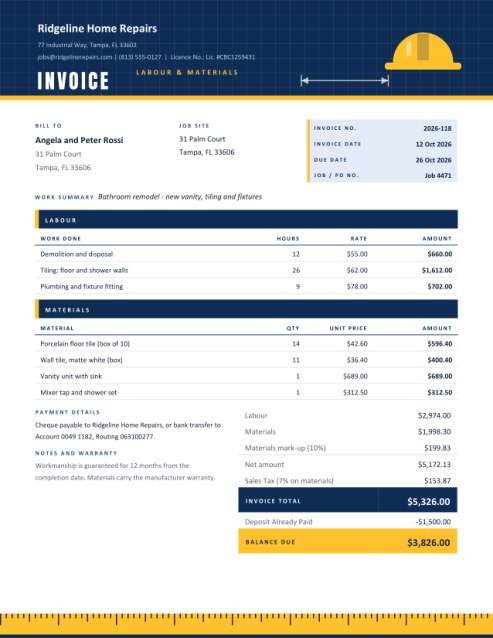
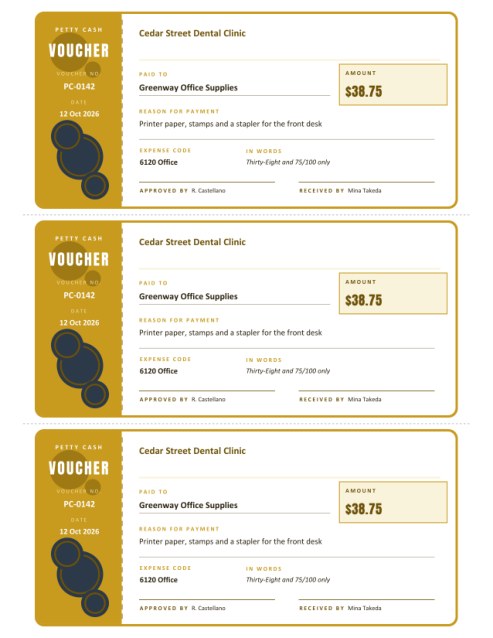
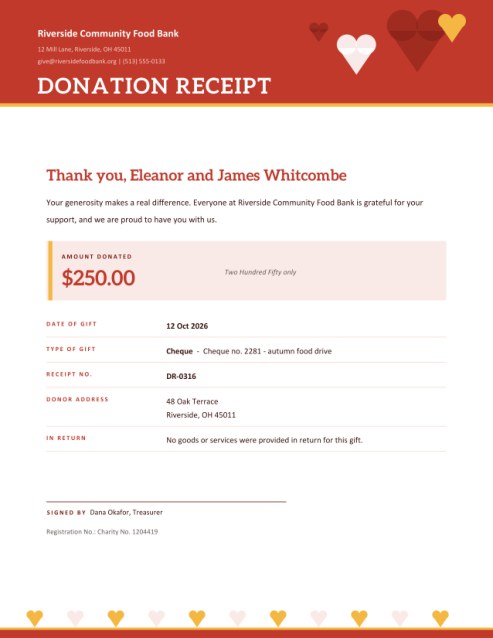
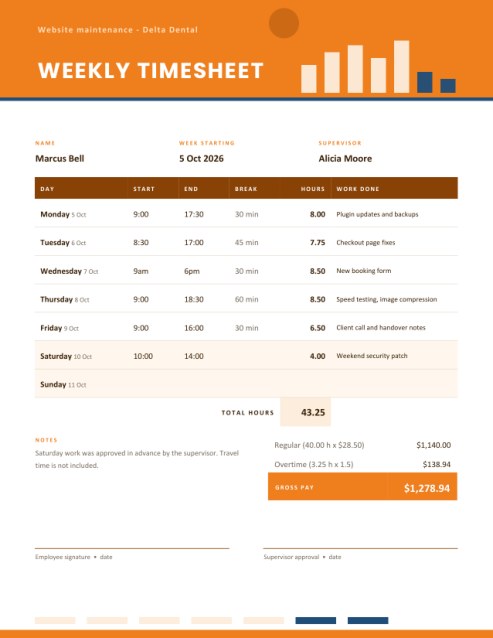
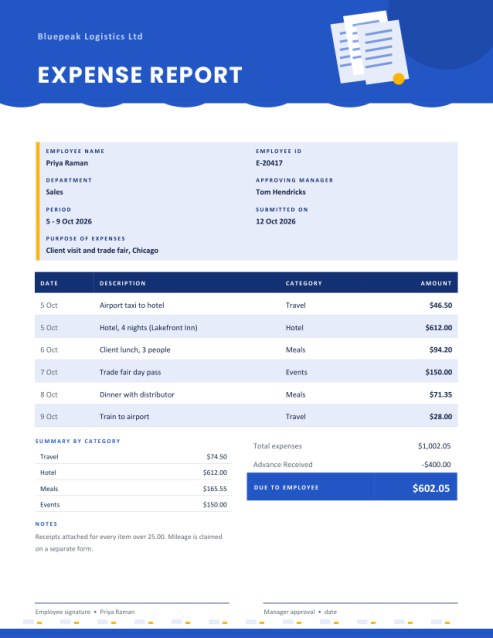
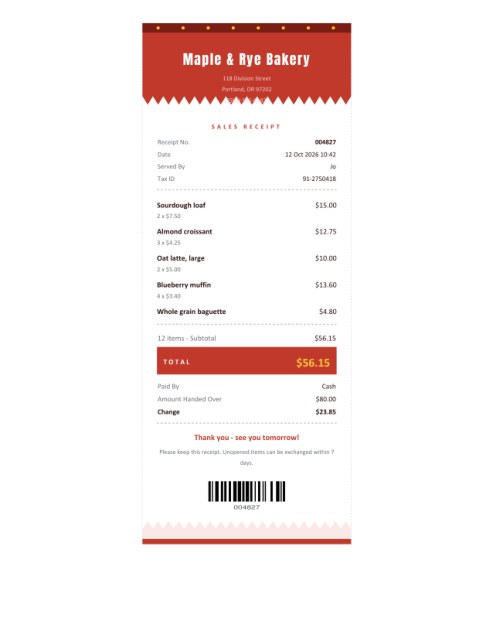
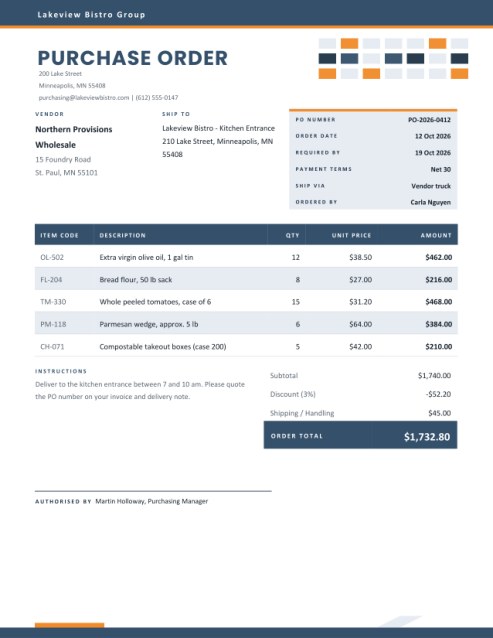
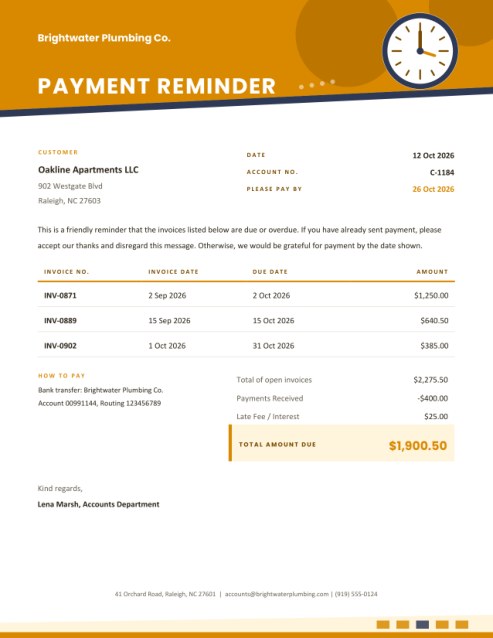
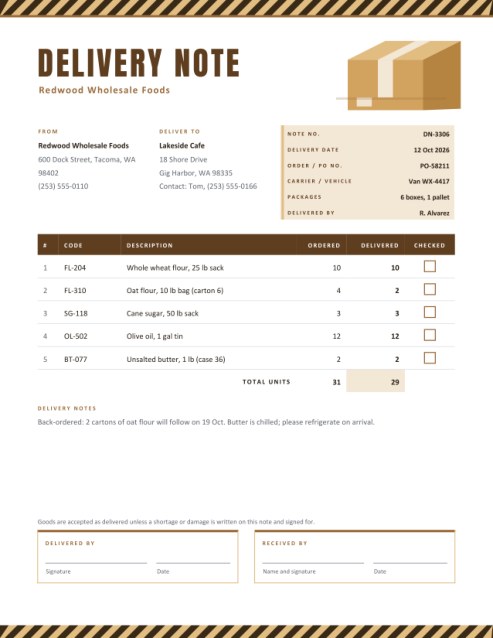
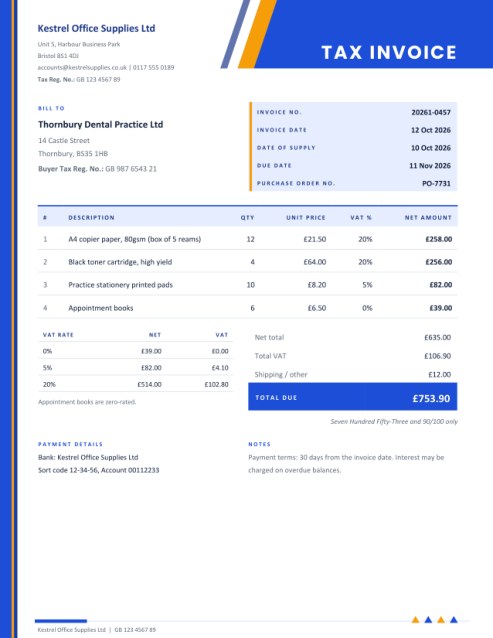
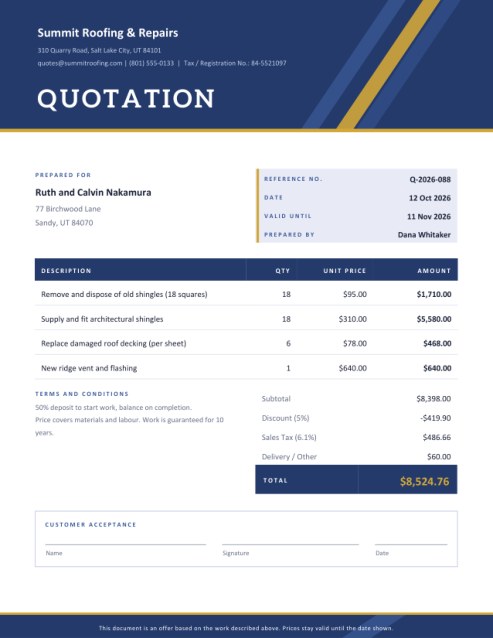
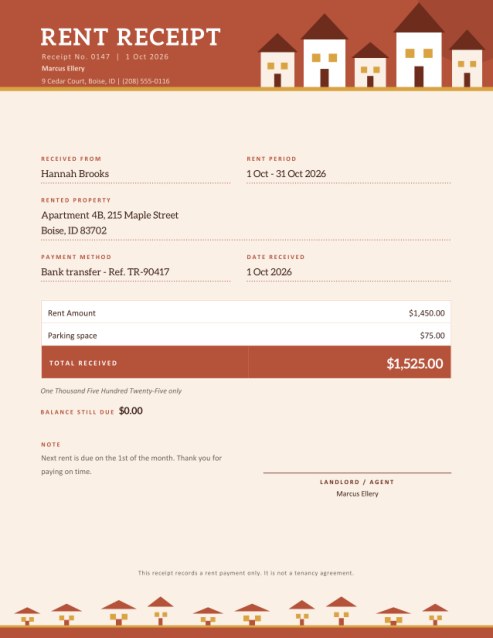
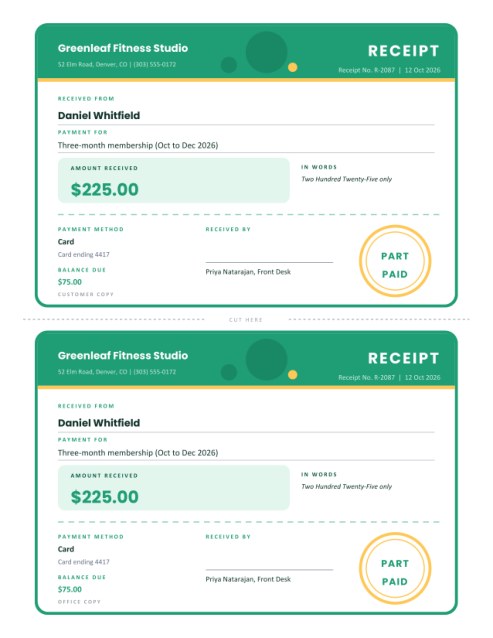
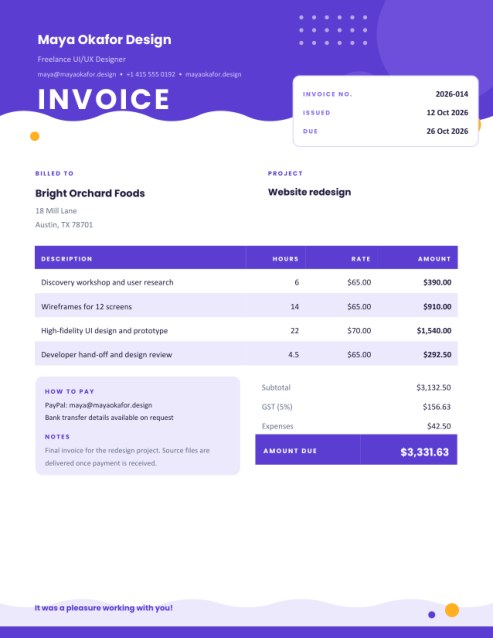
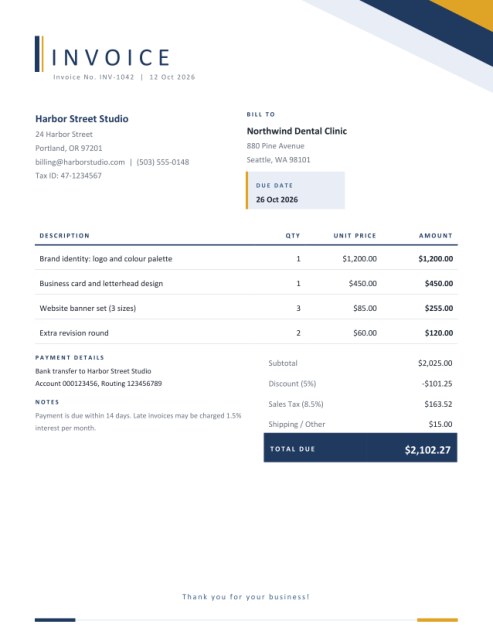
Some other templates similar to this one are also available here. If you would like to create your INVOICE using one of these templates, visit the following.
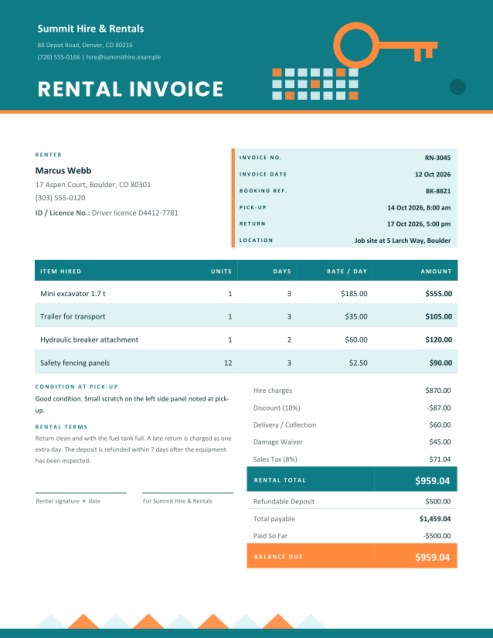
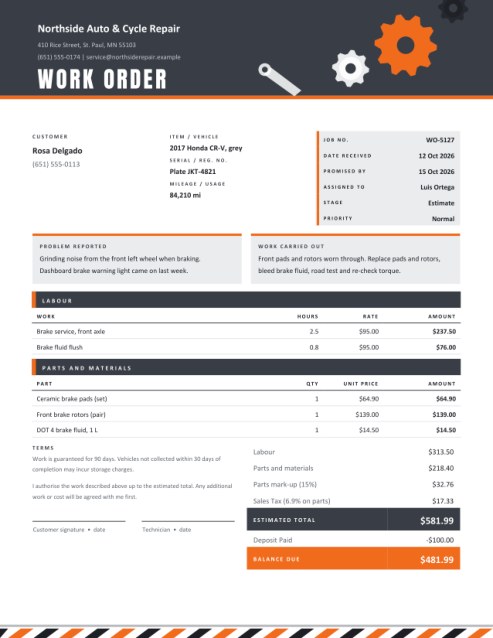
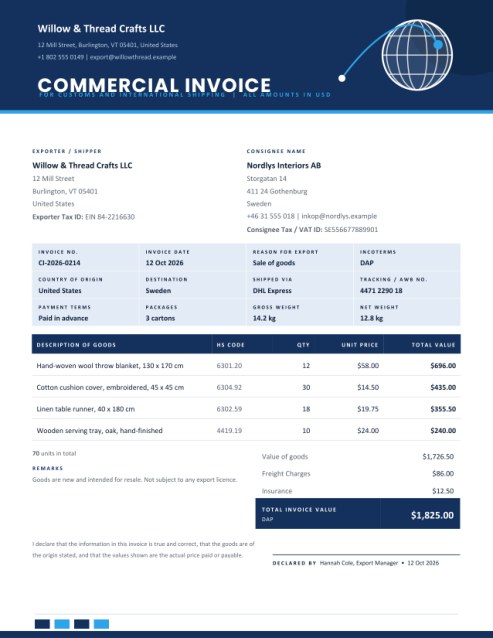
Because invoices are sometimes wrong, and goods sometimes come back
No business sends perfect invoices forever. A parcel arrives cracked. A price was quoted before a discount was agreed. A customer is billed twice. When that happens, the clean fix is not to scribble over the original; it is to issue a document that cancels part or all of it and leaves a trail. That document is a credit note, sometimes called a credit memo.
A credit note says to the customer, “we owe you this amount”, and says to your own accounts, “reduce what this customer owes by this amount”. It keeps the original invoice intact and honest, and it makes audits far easier, because every adjustment has its own number and date.
A design that looks like a correction, not a complaint
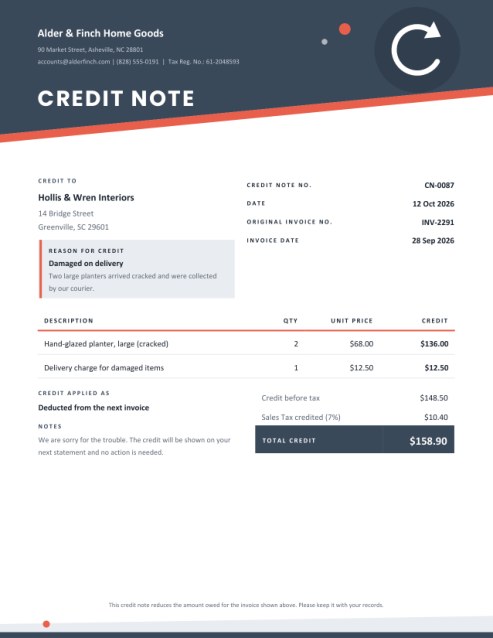
The layout uses a diagonal header with a circular refund arrow, a calm slate, teal or indigo palette and an accent line that picks up the arrow’s colour. A tinted box beneath the customer’s details shows the reason for the credit in one glance. Underneath is a plain table of credited items and a total-credit bar.
The reasons offered
The Reason for Credit list covers the usual situations; add a sentence of detail in the box beside it.
- Goods returned: the customer sent items back.
- Pricing error: the invoice charged more than agreed.
- Damaged on delivery: items arrived unusable.
- Service not delivered: work was paid for but not carried out.
- Goodwill discount: a gesture to put things right.
- Duplicate invoice: the customer was billed twice for the same job.
- Other: anything else, explained in your own words.
Completing the form
- Issued by. Your business name, address, contact line and an optional registration number. Upload a logo if you want it in the header.
- Credit to. The customer’s name and address, exactly as on the invoice being corrected.
- Numbers and dates. Give the credit note its own number, and quote the number and date of the original invoice. That link is the most important detail on the page.
- Items credited. List each item or charge you are reversing, at the price originally invoiced. Four lines show at first; + Add another line reveals more, up to fourteen.
- Tax. If the original invoice carried tax, enter the same rate so that the tax on the credit is reversed too.
- How the credit is applied. Choose between a refund, credit kept on the customer’s account, deduction from the next invoice or deduction from the original invoice, and add a note for anything the customer should know.
Full or partial credit
To cancel an invoice entirely, copy every line across at the original quantities and prices. To credit only part of it, list only the affected items, or reduce the quantity on a line, for example crediting 2 of the 5 planters that were delivered. The totals update automatically, and the document always shows the credit before tax, the tax credited and the total credit.
Good practice
- Number credit notes in their own sequence, separate from invoices.
- Always refer to the invoice you are adjusting; never issue a credit note “in the air”.
- Explain the reason in neutral words, because both sides may read it later.
- Send it promptly. A customer who sees the credit quickly is far less likely to chase you.
- Check how the credit affects tax in your country. Rules for adjusting tax differ, so confirm what applies to you.
Questions people ask
Is a credit note the same as a refund?
Not necessarily. A credit note records the amount you owe; whether you pay it out or set it against future bills is shown in the “Credit Applied As” line.
Do the amounts print as negatives?
No. They are shown as positive credits under a heading that makes the meaning clear.
Can I credit more than the invoice total?
The tool will calculate whatever you enter, but a credit larger than the invoice usually signals a mistake worth double-checking.
Can I print it on A4?
Yes, choose A4 in the paper size list.
Is it free?
Yes.