

Create Tax Invoice with VAT or GST
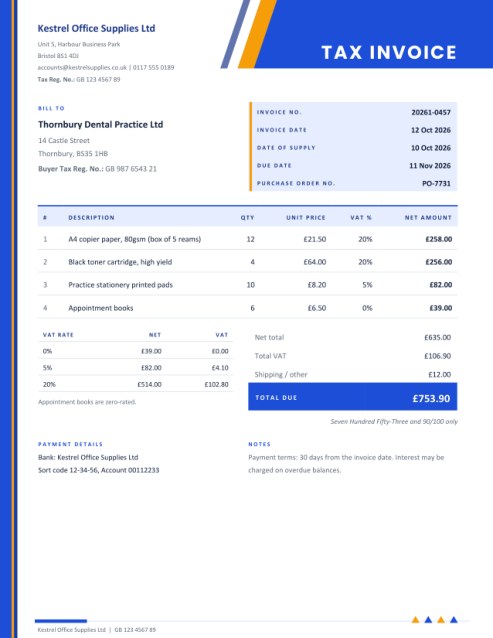
When your customer needs to see the tax, show it properly. Give each line its own tax rate and the invoice groups the totals by rate, adds the tax, applies any discount and spells out the amount due in words.
Includes fields for both parties’ tax registration numbers, a supply date and a purchase order number.
Fill in the information below
Rate this template
Used it? Tap a star. Honest ratings help others choose.
Other Similar Templates
Some other templates similar to this one are also available here. If you would like to create your INVOICE using one of these templates, visit the following.
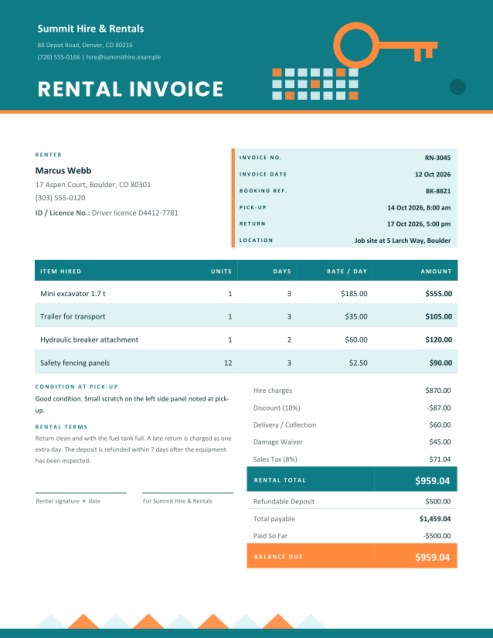
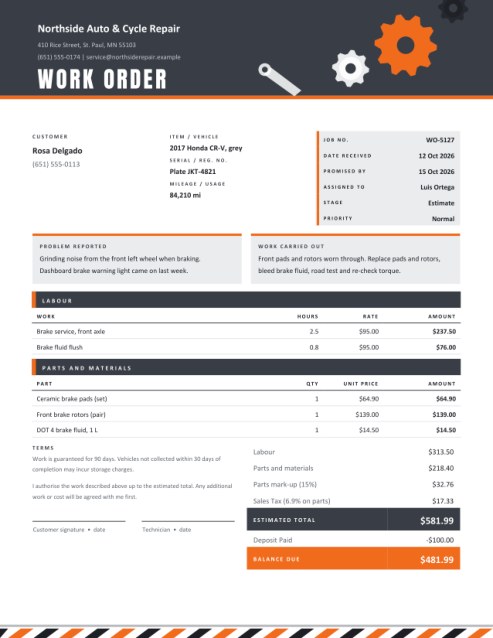
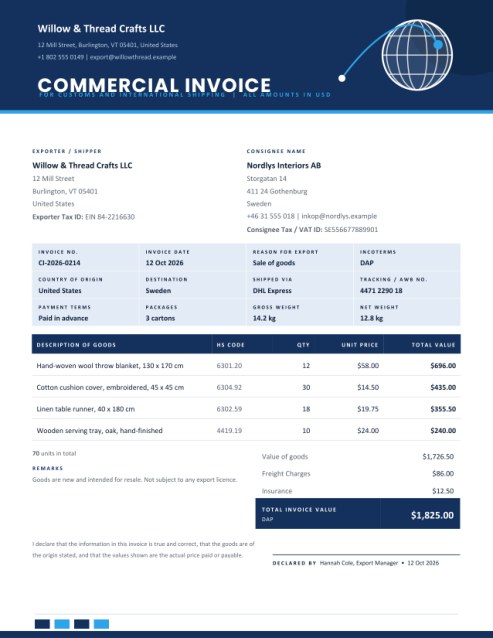
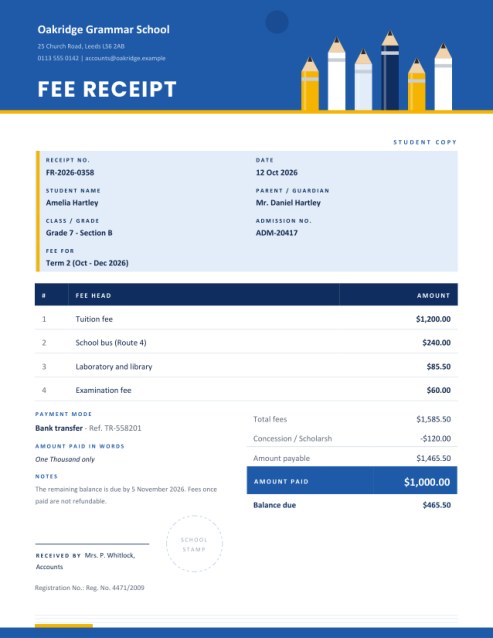
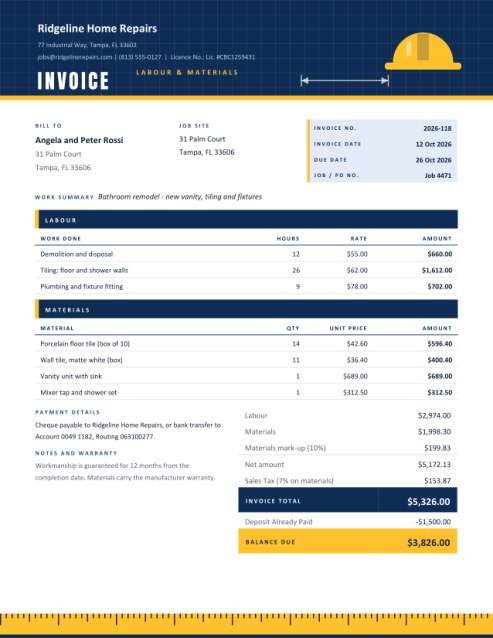
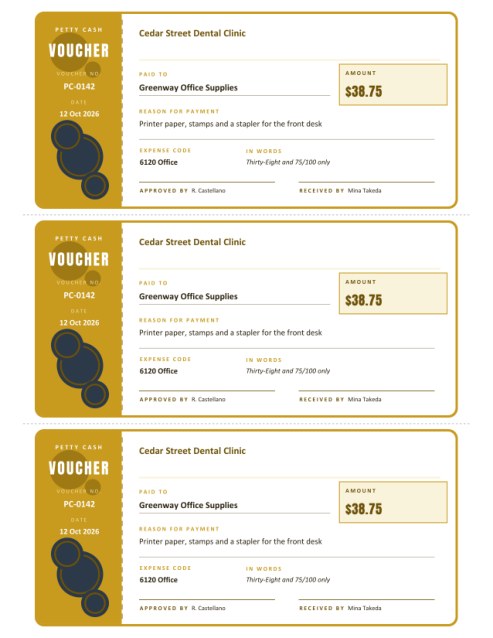
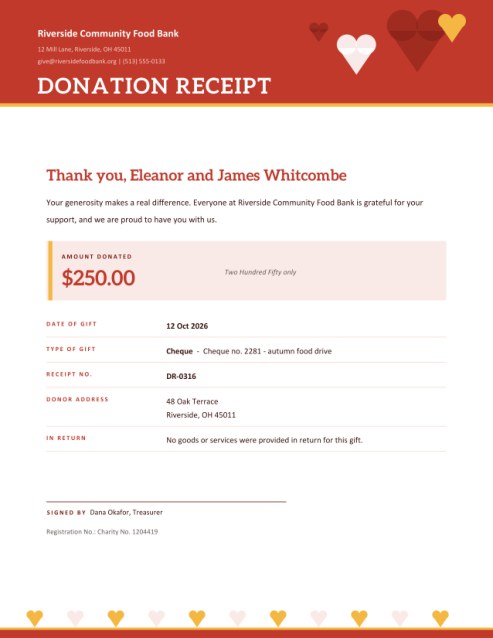
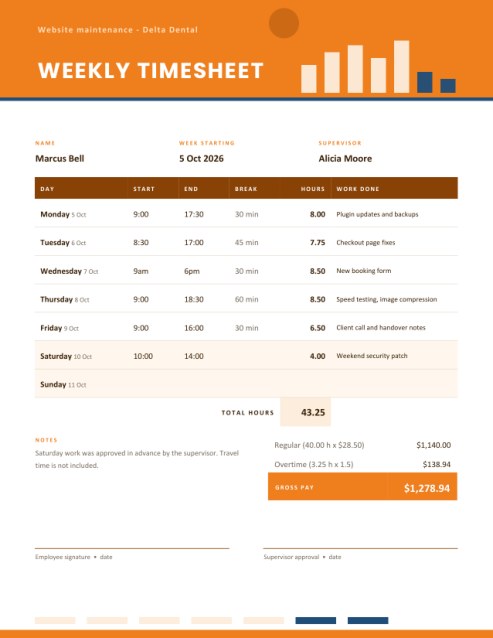
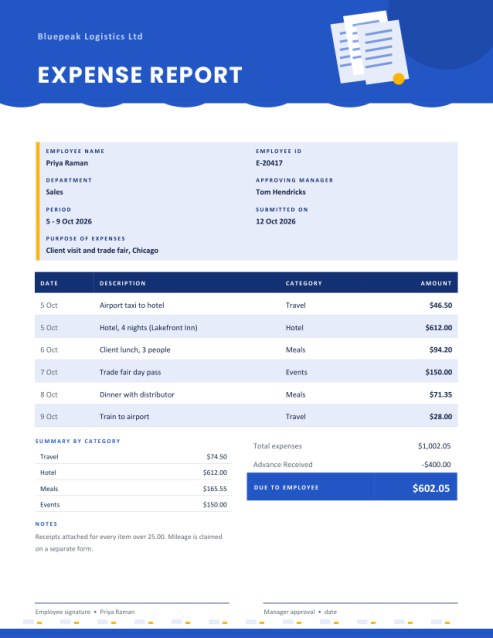
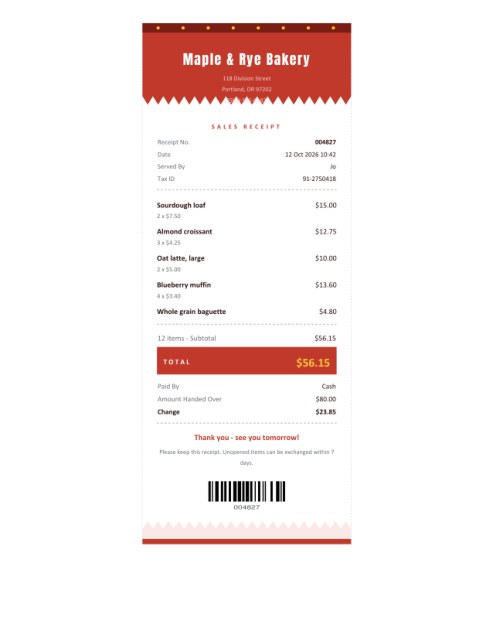
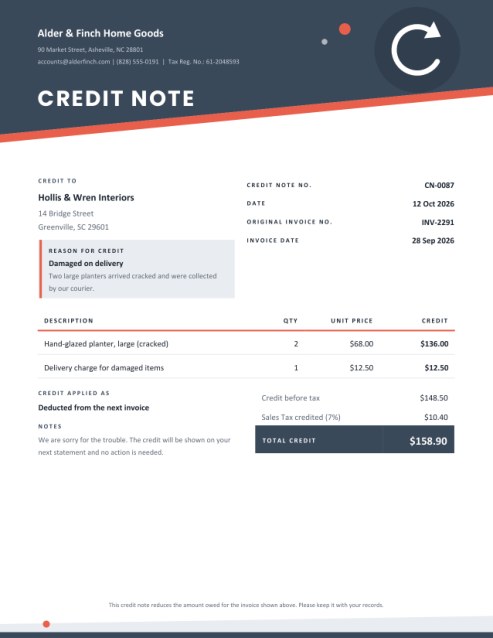
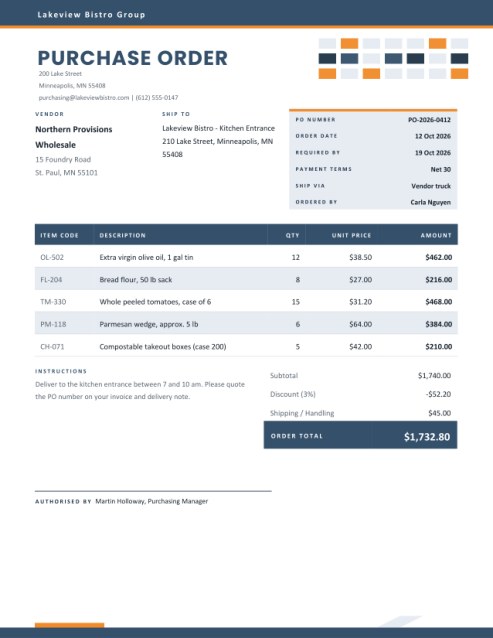
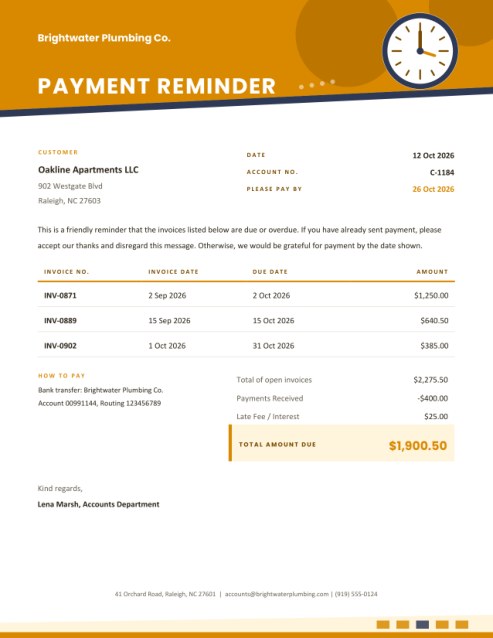
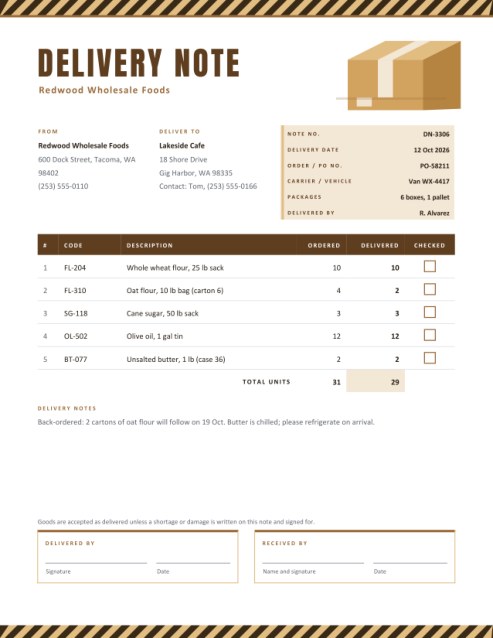
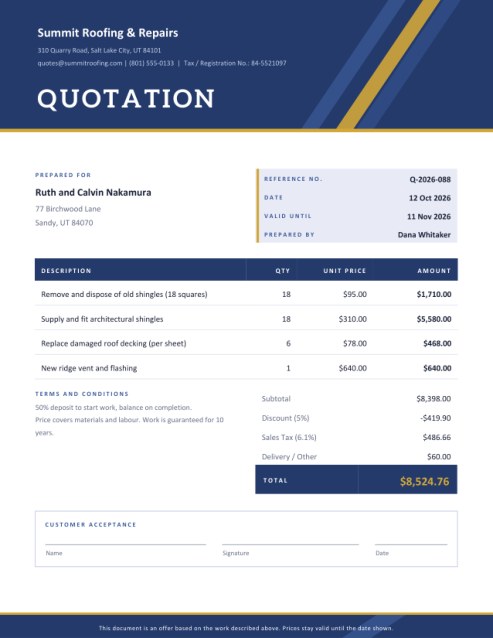
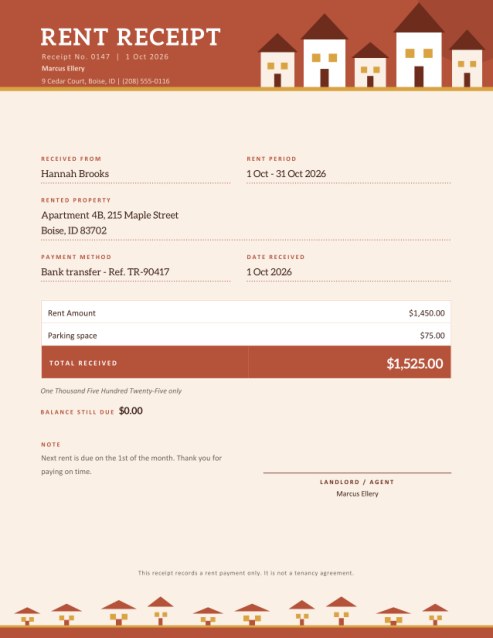
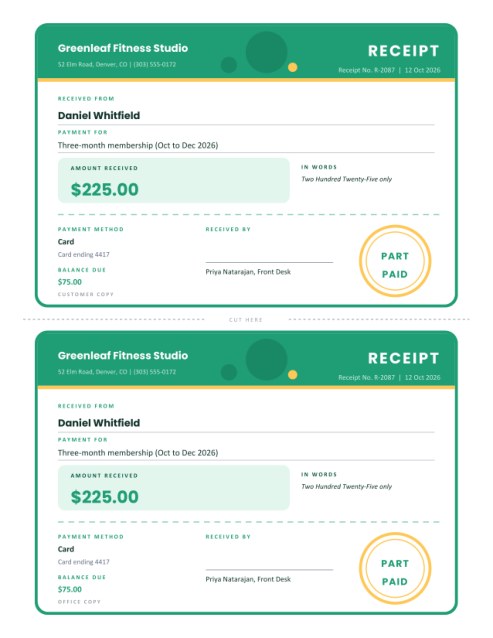
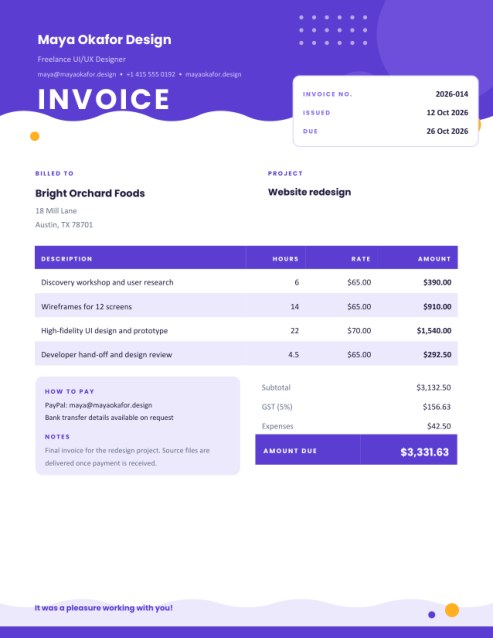
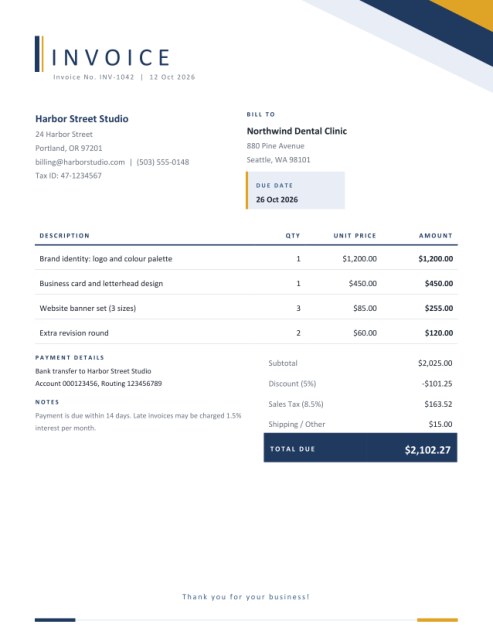
An invoice for customers who reclaim or report tax
When your buyer is a business, they often need more from an invoice than a simple total. They may have to reclaim the tax you charged, record it by rate in their books, or match your document to a purchase order before an accounts department will release payment. An invoice built for that audience puts the registration numbers, the supply date and the tax breakdown in clear view.
This layout has a formal character. A tall bar of colour runs down the left edge of the page, a slanted block carries the title TAX INVOICE, and the main body is divided into well-defined areas: the parties, the reference box, the items, the tax summary, and the totals.
How tax is handled
Unlike a simple invoice with one tax rate, this one lets every line carry its own rate. That matters whenever you sell goods or services that are taxed differently, such as standard-rated stationery, reduced-rate printed matter and zero-rated items on the same order.
- Each line’s net amount is its quantity multiplied by its unit price.
- If you enter a discount percentage, it is taken from every line before tax is worked out.
- Tax for each line is calculated at the rate you typed for that line.
- Lines with the same rate are grouped in the tax summary table, which shows the rate, the net amount and the tax for that rate.
- Shipping or other charges are added at the end without tax.
The sample data shows three rates (20, 5 and 0 percent) so that you can see the summary at work. Choose VAT, GST, Sales Tax or plain Tax in the first drop-down and the column and summary headings change to match.
Filling in each part
The seller
Your business name, address, contact line and tax registration number appear at the top left. A logo can be placed beside them.
The buyer
Enter the customer’s name and address. If they are registered for tax, add their number; many buyers cannot reclaim tax without it. Captions such as “Tax Reg. No.” can be renamed with the pencil icon to suit your country, for example “TIN”, “GSTIN” or “VAT ID”.
Reference box
The invoice number, invoice date, date of supply (the day the goods or services were provided, which can differ from the invoice date), due date and purchase order number appear in a tinted box. Only the boxes you fill in are printed.
Lines and rates
Describe each item, give the quantity and unit price, and type the tax percentage. For zero-rated or exempt items, enter 0. A short tax note, such as “Appointment books are zero-rated”, can be added under the summary.
Amount in words
Under the totals, the invoice states the amount due in words. It is a small touch that helps in countries and sectors where a written figure is expected, and it makes accidental alterations easier to spot.
Checklist before you send
- Is the invoice number unique and in sequence?
- Are both parties’ names and addresses complete and spelled correctly?
- Does every line show the correct rate for that item?
- Does the date of supply match the delivery or service date?
- Are the payment details and due date clear?
- Have you checked what your local tax authority requires on an invoice?
Important note on tax rules
Tax law differs between countries and changes over time. This tool performs the arithmetic you ask it to perform and lays the information out clearly; it does not decide which rate applies, whether you must register, or what exact wording your authority demands. Always confirm the rules with official guidance or a qualified accountant.
Themes
Royal blue and amber looks corporate and crisp. Burgundy and brass is distinguished and traditional. Pine and gold feels steady and established. Switch the paper between US Letter and A4 to suit your office.
Questions answered
Can I use it for GST?
Yes. Choose GST in the tax type list and enter the rate for each line.
What if every item has the same rate?
Type the same percentage on every line; the summary will show a single row.
Are prices entered with or without tax?
Without. Enter the net unit price and the template adds tax on top.
Can I invoice in euros or pounds?
Yes, type € or £ in the currency box.
How many lines can I add?
Start with five and press Add another line for more, up to fourteen. The table spacing tightens automatically so that everything stays on one page.