

Create 12-Week Project Timeline
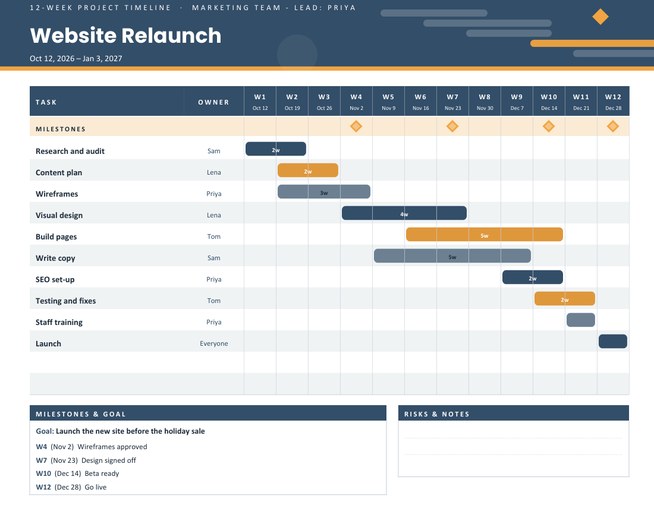
A landscape 12-week project planner in the style of a simple Gantt chart. Type each task with its week range and owner and a coloured bar is drawn across the right weeks, under week headings that show the real start date of each week.
Add up to five milestones, a project goal and a team name, then download a Letter-size PDF for the wall or the project folder.
Fill in the information below
New here? Use the button above to fill in an example, then change it to your own details.
Rate this template
Used it? Tap a star. Honest ratings help others choose.
You May Also Like
Templates from other categories that people often use together with this one.

Other Similar Templates
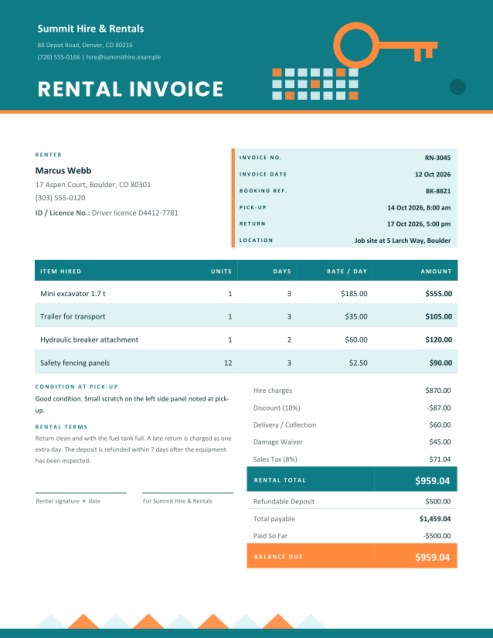
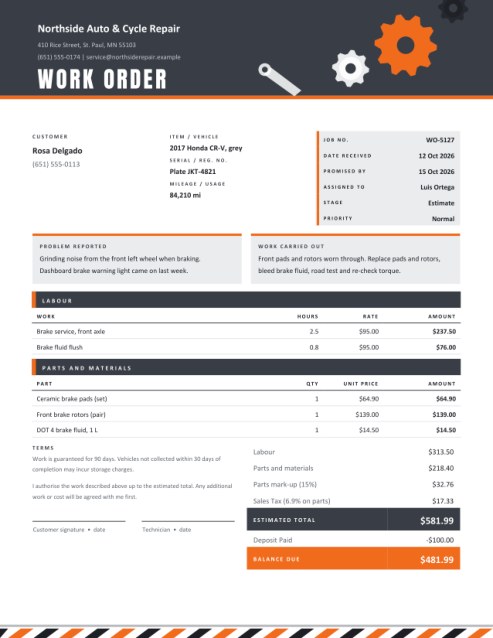
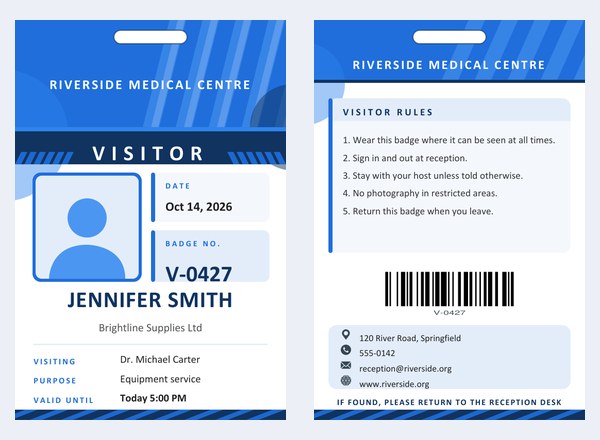
More designs from the same collection, Free Printable Calendars and Planners. If this one is not quite what you need, one of these may be.
Twelve weeks is long enough to plan, short enough to finish
Twelve weeks, roughly a quarter of a year, is a natural length for many projects: a website relaunch, a dissertation chapter, a school fair, a kitchen renovation, a product launch, a wedding, a marathon training plan. It is long enough that work has to be organised and short enough that everyone can keep the whole plan in mind.
A Gantt-style timeline is the classic way to show such a plan. Tasks run down the left and weeks run across the top, and each task is a bar that starts in one week and ends in another. At a glance you can see what overlaps, what depends on what, and where the crunch weeks are. This template gives you that page without any software.
Building your timeline
- Name the project and add the owner or team.
- Choose the start date of week 1 by picking any day in that week, and decide whether weeks start on Monday or Sunday. The twelve week headings, W1 to W12, are labelled with the real date each week begins, and the header shows the whole range from the first day to the last.
- Pick a colour theme: slate with amber, teal with saffron, indigo with orange, or forest with coral.
- Type your tasks, one per line, as task, weeks, owner: Wireframes | 2-4 | Priya. Use a range such as 4-7, or a single number such as 12 for a one-week task. The owner is optional.
- Add milestones and a goal. A milestone is a week number and a name, such as 8 Beta ready.
Reading the chart
- Each bar covers the weeks you gave. Bars rotate between three colours so neighbouring rows are easy to tell apart, and wide bars carry their length, such as 3w.
- Each diamond in the milestone row marks the middle of the week you named.
- The Milestones & Goal panel under the chart lists every milestone with its week number and the date that week starts, plus the goal in bold.
- Rows alternate between white and a pale tint, and light vertical lines separate the weeks, so a ruler is not needed to follow a bar across.
You can list up to twelve tasks. If a task has no valid week range, its name is still listed but no bar is drawn, which is a handy way to keep an unscheduled to-do on the page.
Planning tips
- Start from the end. Write the launch or deadline first, then work backwards to see when each task must begin.
- Let tasks overlap sensibly. Design can start when the wireframes are nearly done; testing should not wait for the very last line of code.
- Give every task one owner. Shared responsibility often means no responsibility.
- Add slack. Leave a quiet week before the deadline, or the first delay will push the whole plan.
- Review every week. Mark progress on the printed chart with a highlighter, and redraw the plan if reality has moved.
Ideas for twelve-week plans
- Study: a thesis chapter, an exam revision plan, a portfolio.
- Work: a product launch, an office move, a marketing campaign, an audit.
- Home: a renovation, a garden redesign, a house move, a wedding or party.
- Personal: a fitness programme, a language course, writing a first draft.
- Community: a school fair, a fundraiser, a festival or a sports season.
Printing and sharing
The page is US Letter landscape. Print it for the team room wall, or save the PDF and share it by email so everyone sees the same plan. For A4 paper choose “fit to page”. Because the dates come from the start date you choose, you can reuse the same task list for the next project by changing only the date and the names.
Questions people ask
How do I show a task that lasts one week?
Use a single number as the weeks part, for example “Launch | 12 | Everyone”. A one-week bar is drawn in that column.
How are the week dates worked out?
From the start date you choose. Any day in the first week works; the chart finds the first day of that week (Monday or Sunday, as you choose) and counts seven days for each following week.
How many tasks and milestones can I add?
Up to twelve tasks and five milestones.
What if a task starts before week 1 or ends after week 12?
Weeks must be between 1 and 12. A range that ends beyond week 12 is shortened to week 12, and a start outside the range means no bar is drawn.
Can I make a longer plan?
This chart shows twelve weeks. For a longer project, print a second chart that starts in week 13 and carry unfinished tasks across.
Is it a replacement for project software?
No. It is a simple printable plan for small projects and personal goals. Larger projects with dependencies and resources are better managed in dedicated software.